
SharePoint Integration
Want to access and manage SharePoint content in your workflows? Use our SharePoint components to securely connect your tenant, list files, retrieve sites, and automate document-based processes.
TL;DR
List of SharePoint Components
| Component | Action | What it Does | Inputs | Key Outputs | Use Case |
|---|---|---|---|---|---|
| Get Root Site | Read | Retrieves the root site of your SharePoint tenant. | required tenant-name | id, displayName, name | Identify root site metadata to anchor other calls. |
| Search Site | Query | Searches for a team site using a query. | required query | value | Locate a team site by keyword or group ID. |
| List All Sites | Read | Lists all SharePoint sites in the tenant. | required trigger | sites | Display site options for downstream selection. |
| List Site Drive Items | Read | Lists files/folders in a SharePoint drive. | required site_id | items | Retrieve and manage content from a drive. |
Getting Started with SharePoint
Step 1: Register in Microsoft Entra
- Go to the Microsoft Entra Portal
- Navigate to Azure Active Directory > App registrations
- Click New registration
- Fill in:
- Name: e.g.,
SmythOS Agent Access - Redirect URI:
https://app.smythos.com/oauth/oauth2/callback
- Name: e.g.,
- After registration:
- Copy the Client ID
- Go to Certificates & secrets > New client secret
- Copy the generated secret
Step 2: Assign Microsoft Graph API Permissions
- Go to API Permissions
- Add:
Sites.Read.AllSites.ReadWrite.All
Required Permissions
Step 3: Store Your Credentials in Vault
- Go to SmythOS Vault
- Create a new secret for
Client IDandClient Secret- Name them something like
sharepoint_client_id,sharepoint_client_secret
- Name them something like
Component Reference
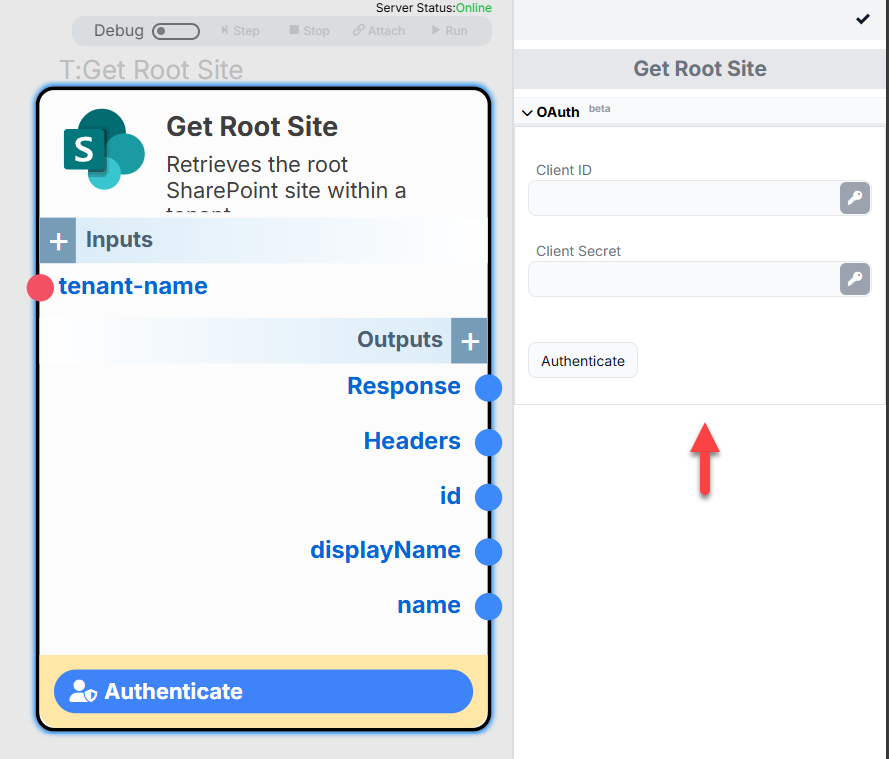
Get Root Site
Retrieves your tenant’s root SharePoint site.
Inputs
| Field | Required | Description |
|---|---|---|
tenant-name | required | Microsoft 365 tenant name. |
Outputs
| Field | Description |
|---|---|
id | Root site ID |
displayName | Friendly name of the site |
name | Internal SharePoint site name |
response, headers | Raw API output and metadata |
Use Case
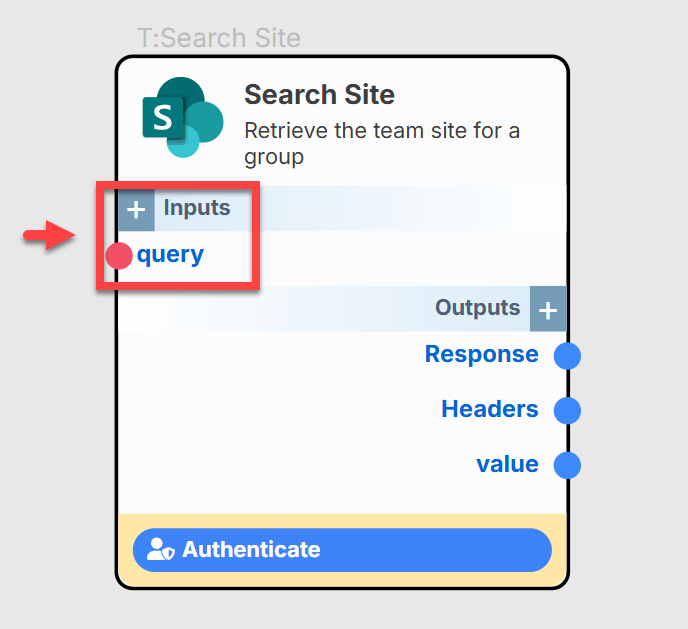
Search Site
Query team sites using keywords.
Inputs
| Field | Required | Description |
|---|---|---|
query | required | Name or keyword for the site you're searching for. |
Outputs
| Field | Description |
|---|---|
value | Matching site(s) metadata |
response, headers | Raw API output and metadata |
Token Errors
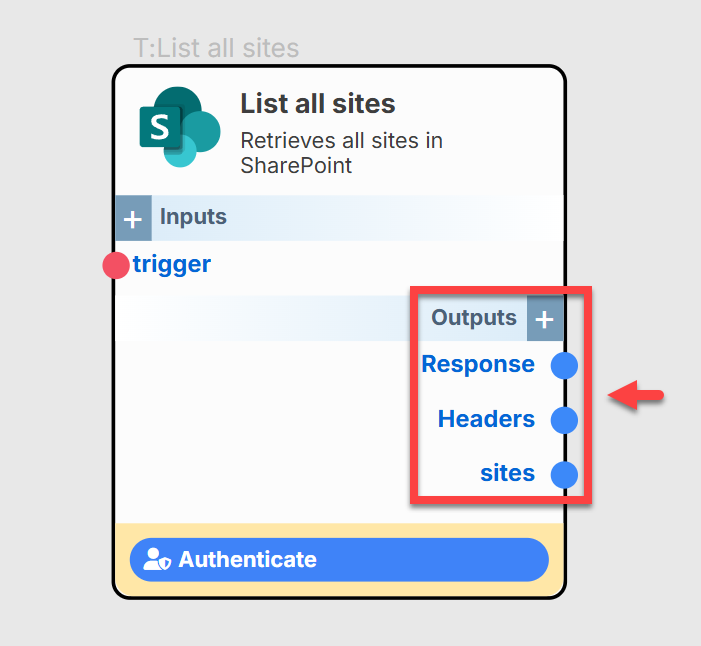
List All Sites
Lists all sites under the authenticated tenant.
Inputs
| Field | Required | Description |
|---|---|---|
trigger | required | Trigger flag to initiate fetch. |
Outputs
| Field | Description |
|---|---|
sites | Array of SharePoint site objects |
response, headers | Raw API response |
TIP
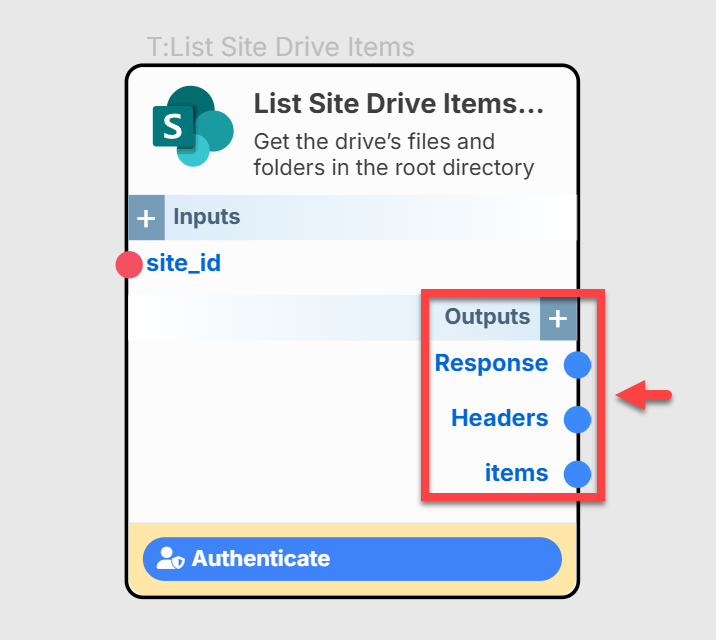
List Site Drive Items
Lists folders/files from the root directory of a SharePoint site.
Inputs
| Field | Required | Description |
|---|---|---|
site_id | required | SharePoint site ID from which to list contents. |
Outputs
| Field | Description |
|---|---|
items | Array of files/folders |
response, headers | Full API response |
Missing Site ID
Best Practices & Tips
- Always store credentials using Vault.
- Use
Search Sitebefore referencing team-specific drives. - Handle token refresh using "Sign Out" → "Authenticate" cycle.
- Paginate
List Site Drive Itemsif result set exceeds 200 items. - Secure Graph API access with least privilege scopes.
Troubleshooting
| Error | Cause | Solution |
|---|---|---|
401 Unauthorized | Expired or missing token | Re-authenticate using the sign-out flow. |
403 Forbidden | Permission scope not set | Confirm Sites.Read.All is granted/admin-consented. |
Invalid site_id | Missing or incorrect site | Use Search Site or Get Root Site to get a valid ID. |

What’s Next?
Explore these automation ideas:
- Sync weekly folders from SharePoint to Google Drive.
- Let users search across SharePoint team sites and preview results.
- Route uploaded files for processing (e.g., OCR, tagging).