
Google Docs Integration
Want to automate document workflows inside agents? Use this integration to create, read, or edit Google Docs programmatically in SmythOS.
List of Google Docs Components
| Component | Action | What it Does | Inputs | Key Outputs | Use Case |
|---|---|---|---|---|---|
| Get Document | Retrieve | Pulls full document structure + metadata | documentId | title, content | Ingest content into an agent |
| Append Text | Write | Adds text to a document | documentId, text | documentId | Auto-log output into a running doc |
| Create Document | Create | Starts a new blank document | title | documentId | Generate a report or note in real-time |
OAuth Setup for Google Docs
You’ll need to create a Google Cloud OAuth App:
1. Go to Google Developer Console
Visit console.developers.google.com and create or select a project.
2. Enable Google Docs API
Go to Library, search for "Google Docs API", and enable it.
3. Configure Consent Screen
Fill out the app name, user support email, and scope (Docs API scope).
4. Create OAuth Credentials
Go to Credentials → Create Credentials → OAuth client ID, and:
- Choose “Web application”
- Set redirect URI to:
https://app.smythos.com/oauth/google/callback
5. Save Credentials in SmythOS
Copy the Client ID and Client Secret and store in Vault or paste into the integration settings.
Get Document
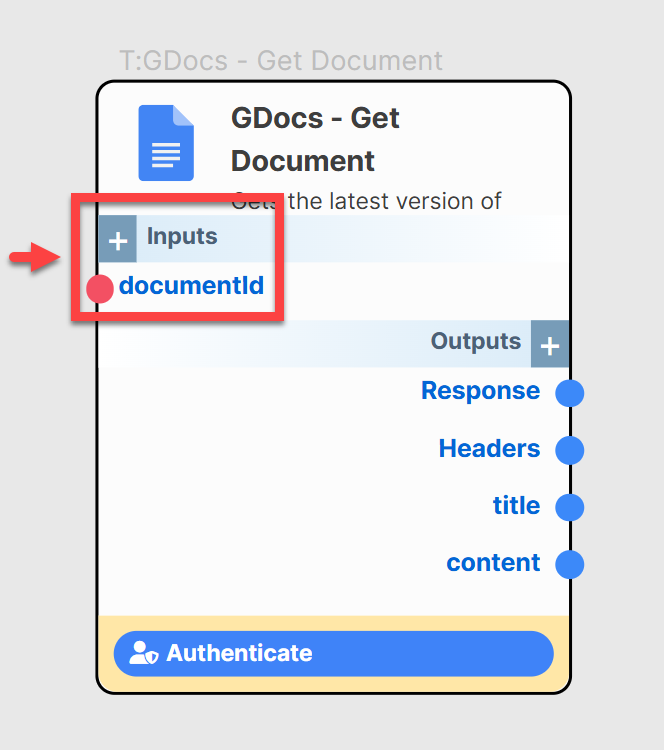
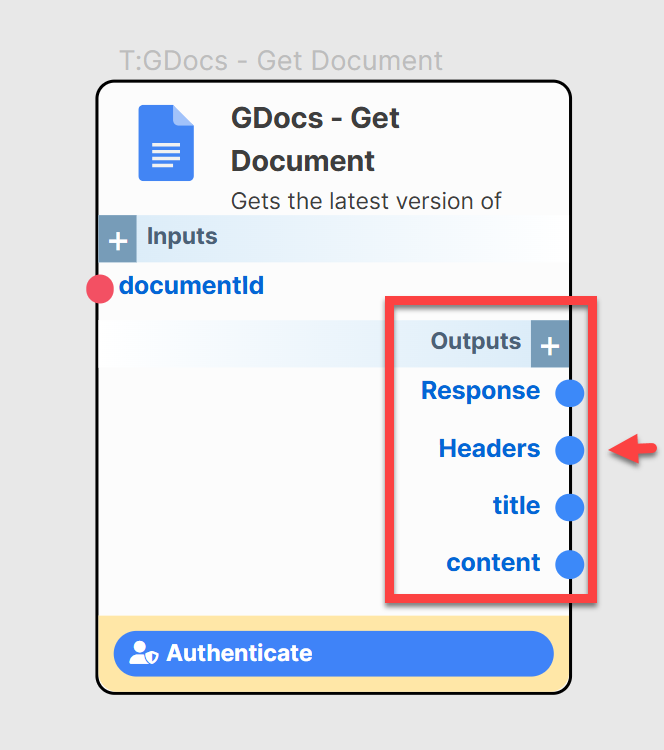
Fetch a Google Doc’s full JSON representation, including title and structured body content.
Inputs
| Field | Required | Description |
|---|---|---|
documentId | required | Unique ID from the Google Docs URL |
Outputs
| Field | Description |
|---|---|
title | The document’s current title |
content | The full document structure (paragraphs, elements) |
response | Full JSON body |
headers | HTTP metadata from the API |
Append Text
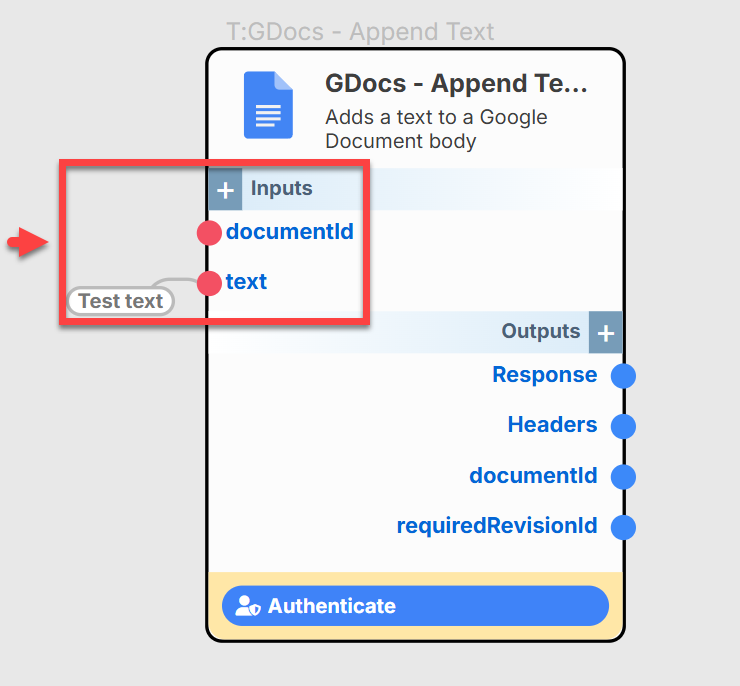
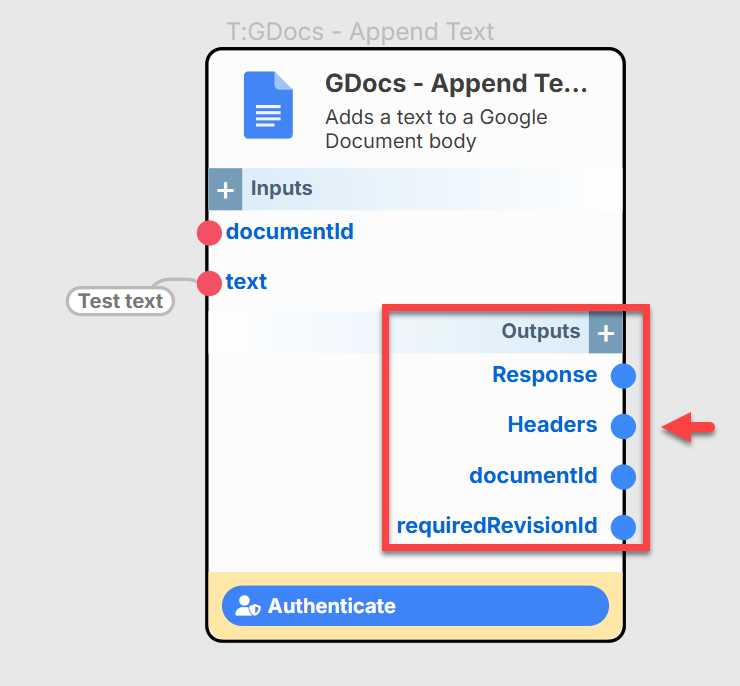
Add raw text content to the end of an existing Google Document.
Inputs
| Field | Required | Description |
|---|---|---|
documentId | required | The target document’s ID |
text | required | The string to append to the doc |
Outputs
| Field | Description |
|---|---|
documentId | Echoes the document ID |
requiredRevisionId | Tracks the revision before the edit |
response | Full Google Docs API response |
headers | HTTP metadata for diagnostics |
Create Document
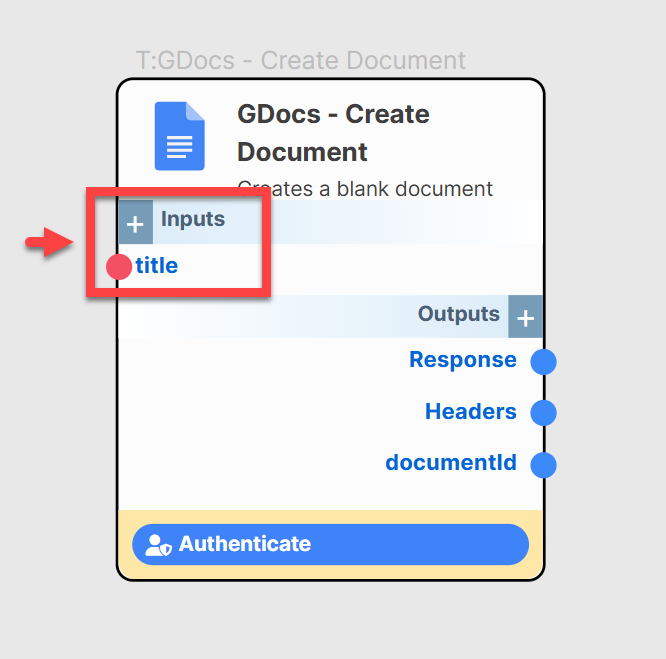
Creates a new blank Google Doc with a given title.
Inputs
| Field | Required | Description |
|---|---|---|
title | required | The new document’s display title |
Outputs
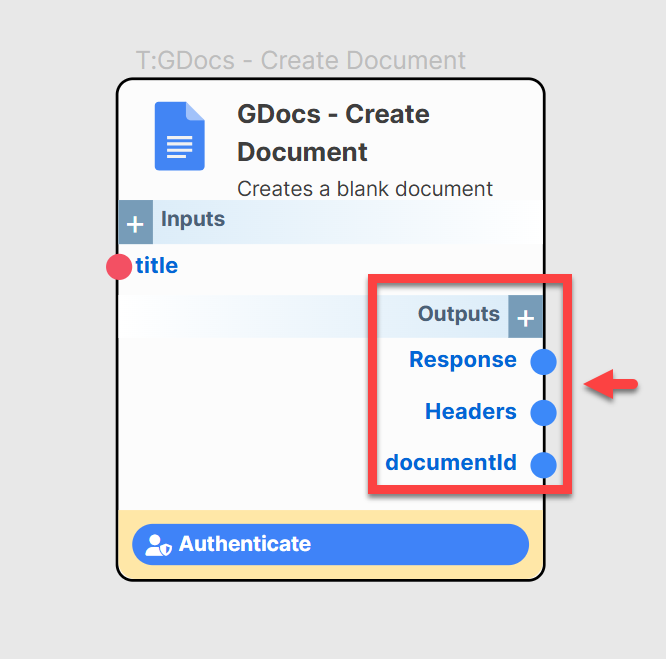
| Field | Description |
|---|---|
documentId | ID of the new Google Doc |
response | JSON body of doc metadata |
headers | API response headers |
Best Practices
- 🔐 Always use Vault to store sensitive client credentials.
- 🧠 Use
Get DocumentbeforeAppend Textto avoid content duplication. - ✍🏼 Style and format using Docs batch update methods (upcoming support).
- 📄 Treat the document structure as an editable tree—parse with care.
Troubleshooting
| Error | Cause | Resolution |
|---|---|---|
PERMISSION_DENIED | Not authorized or no access | Confirm OAuth scopes and document sharing |
INVALID_ARGUMENT | Malformed input | Ensure IDs and payloads are correctly formatted |
NOT_FOUND | Document doesn’t exist | Double-check documentId value |
QUOTA_EXCEEDED | Daily limit hit | Upgrade project quota or retry next day |
Example Flows
Try these agent use cases:
- Auto-generate call summaries into a doc after each customer session
- Team updates bot that logs check-ins to a shared Google Doc
- Invoice generation that writes line items into templated Docs
